
How Do I Find My LinkedIn URL?
Your LinkedIn URL is one of the most valuable pieces of your professional digital identity. Whether you’re updating your resume, adding it to an email signature, or sharing it with a recruiter, knowing how to find my LinkedIn URL quickly can save time and make you look polished. This guide walks you through every method—desktop, mobile, and customization—so you can grab your link in seconds.
How to Find Your LinkedIn URL in Under 60 Seconds
Let’s skip the theory and get straight to the fastest way to find your LinkedIn URL right now. This method works on any computer with a web browser.
First, open your browser and go to linkedin.com, then sign into your LinkedIn account. Once you’re logged in, look at the top-right corner of the LinkedIn homepage and click the Me icon (your profile photo or initials). From the dropdown menu, select View Profile to land on your profile page.
Now look at your browser’s address bar at the top of the screen. You’ll see your full LinkedIn profile URL, which looks something like https://www.linkedin.com/in/firstname-lastname-123456789/. Click inside the address bar to highlight the entire URL, then press Ctrl+C on Windows or Cmd+C on Mac to copy it.
Open a document, notes app, or email and paste the link using Ctrl+V or Cmd+V. That’s your LinkedIn profile link, the one you can put on your resume, personal website, or anywhere else professionals might want to find you.
What Is a LinkedIn URL and Why It Matters
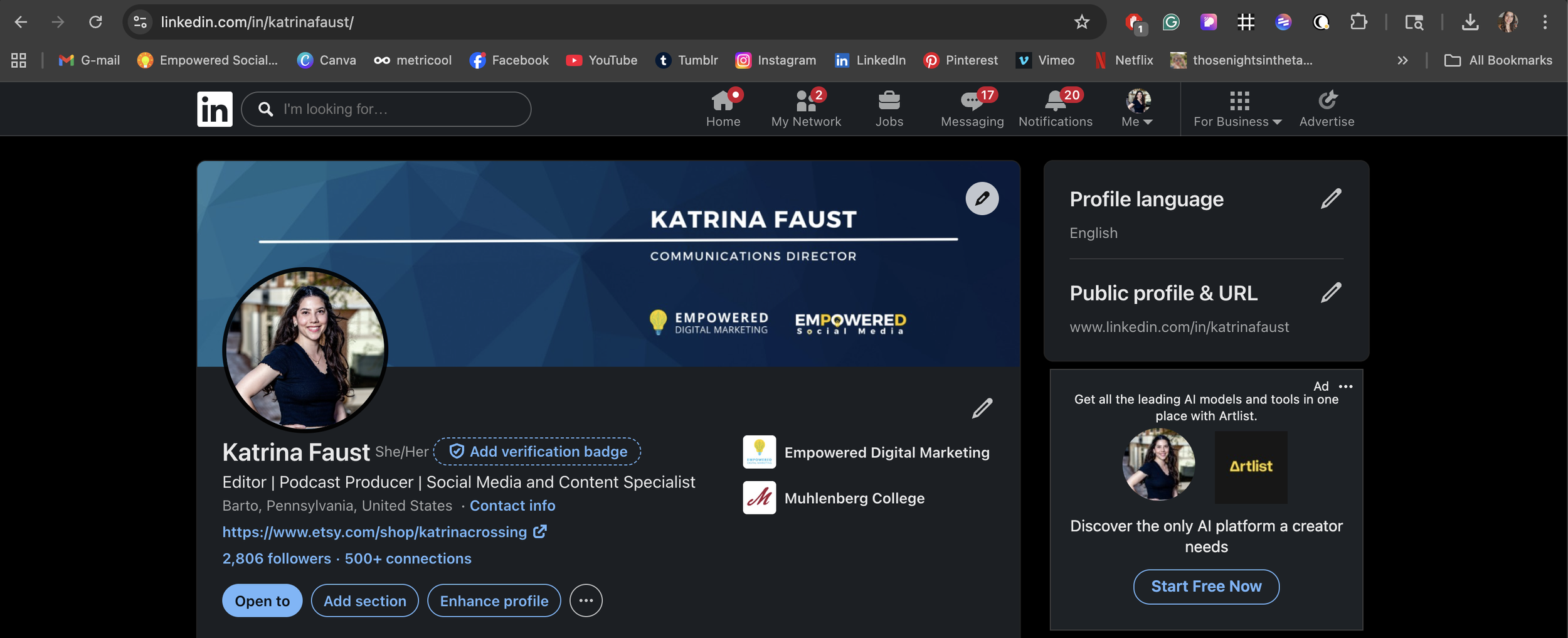
A LinkedIn URL serves as the unique web address that directs anyone straight to your LinkedIn profile. Think of it as your professional home address on the internet. A typical URL looks like https://www.linkedin.com/in/jane-doe-marketing/ for someone with a customized link, or https://www.linkedin.com/in/jane-doe-7a8b9c0d/ for a default version with random numbers.
When you create a LinkedIn account, the platform automatically generates a default URL with alphanumeric characters. This works fine technically, but it looks unprofessional and is nearly impossible to remember or type correctly.
Here’s why your LinkedIn public profile URL matters:
Over 87% of recruiters use LinkedIn for hiring, and your URL is often the first thing they click on a resume
When someone Googles your name, your LinkedIn profile frequently appears in search results
Clients and colleagues often review profiles before meetings or collaborations
Common places to use your URL link include resumes, cover letters, business cards, speaker bios, portfolio websites, and conference profiles.
How to Find Your LinkedIn URL on Desktop
This section covers laptop and desktop users on browsers like Chrome, Firefox, Edge, or Safari. There are two reliable methods to find your LinkedIn URL on a computer.
Method 1: From Your Profile Page
Click the Me icon in the top navigation bar, then click View Profile from the dropdown. Once your LinkedIn profile page loads, look at the URL bar at the top of your browser. The address displayed is your full profile URL, starting with https://www.linkedin.com/in/ followed by your custom text or a LinkedIn-generated string with random characters.
Method 2: From Public Profile Settings
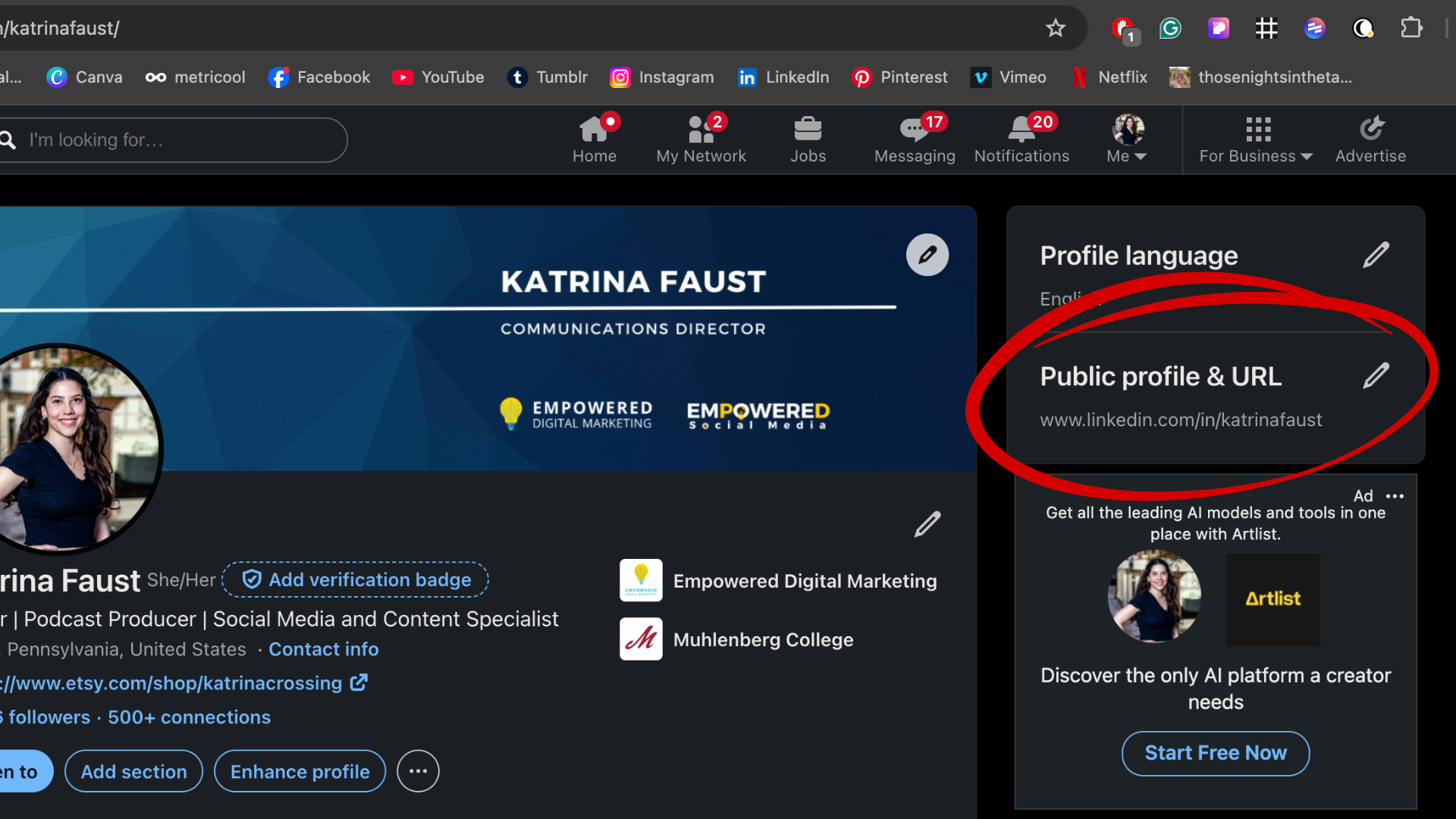
From your profile page, look at the right sidebar and click “Edit public profile & URL.” A new page opens with your public profile settings. In the right sidebar, you’ll see a section labeled “Edit your custom URL” showing your current public URL. This is the link visible to people who aren’t logged into LinkedIn, making it ideal for resumes and websites.
The public profile URL from Method 2 is what appears when someone searches your name on Google without being connected to you on LinkedIn.
How to Copy and Paste Your LinkedIn Profile Link
Copying and pasting works identically across Chrome, Firefox, Edge, and Safari. Click once inside the address bar to focus on it, then press Ctrl+A (Windows) or Cmd+A (Mac) to select the entire URL. Next, press Ctrl+C or Cmd+C to copy.
To paste, navigate to your Word document, Google Doc, PDF resume, or email and press Ctrl+V or Cmd+V. Before adding this link anywhere official, test it by pasting into a new browser tab and pressing Enter. Confirm it loads your correct profile with your profile photo and information visible.
How to Find Your LinkedIn URL in the Mobile App (iPhone & Android)
Many professionals primarily use the LinkedIn mobile app rather than a computer. Finding your URL on a phone requires a slightly different approach since there’s no visible address bar.
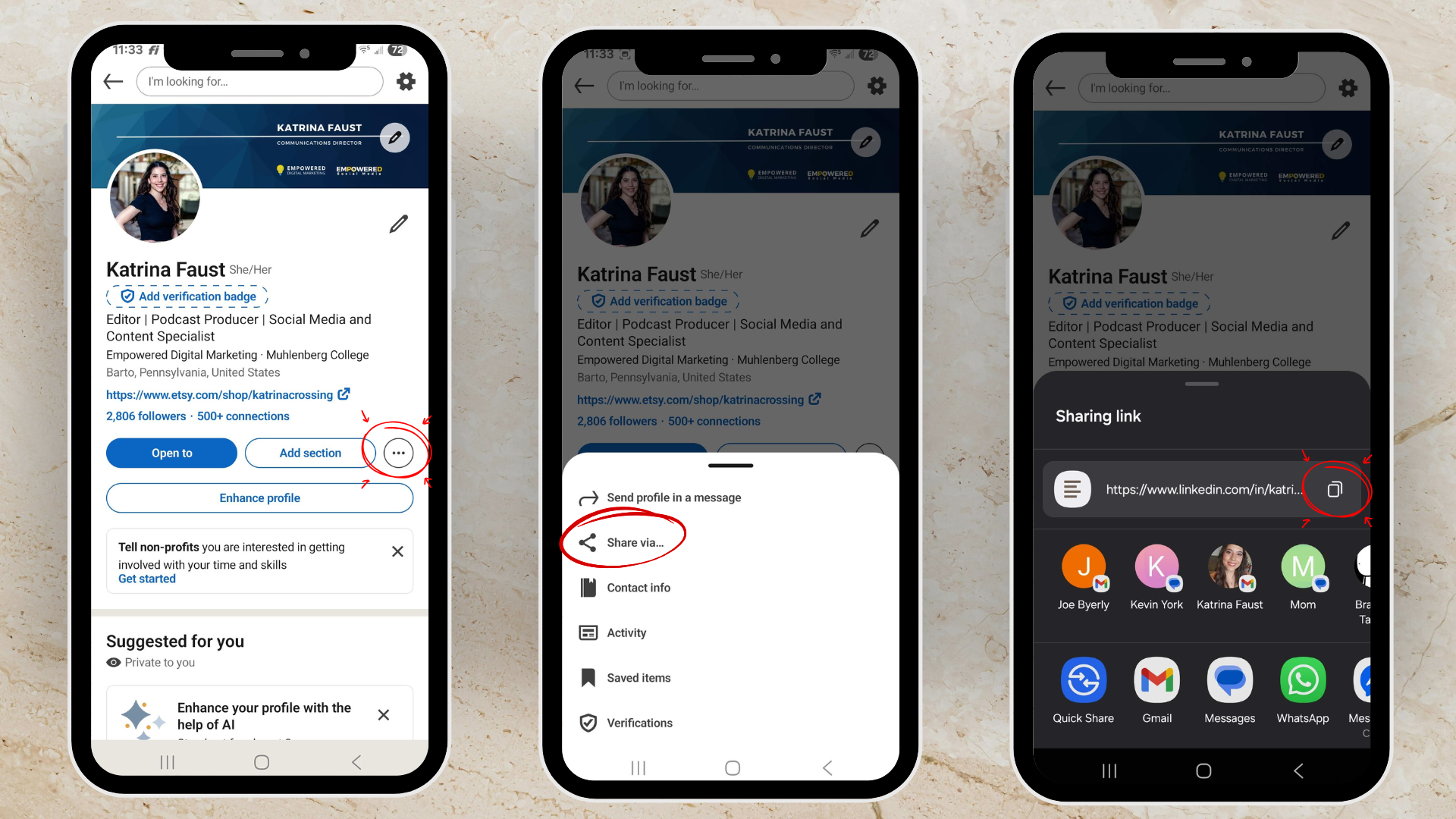
Open the LinkedIn app on your iPhone or Android device and sign in if needed. Tap your profile picture or name in the top-left corner of the screen to access your profile. Once you’re viewing your personal profile, tap the More icon (three dots ⋯) near your profile photo and headline.
From the menu that appears, select “Share profile.” Your phone’s share sheet will open with several options. Tap “Copy link” or “Copy to clipboard” to copy your full LinkedIn profile URL. You can now paste this into Notes, Mail, Messages, or any other app on your phone.
On some versions of the LinkedIn mobile app, your URL is also visible under the contact section if you tap “Contact info” while viewing your own profile.
How to Share Your LinkedIn Profile from the Mobile App
The same “Share profile” flow lets you send your link directly without copying first. After tapping Share profile, you can choose options like Messages, Mail, WhatsApp, or any messaging app installed on your device.
This is useful for texting a recruiter your link during a conversation, sharing in a networking event group chat, or sending via LinkedIn messages to a new connection. For quick access in the future, save your URL in your phone’s notes app so you can paste it anytime without opening LinkedIn.
How to Customize and Clean Up Your LinkedIn URL
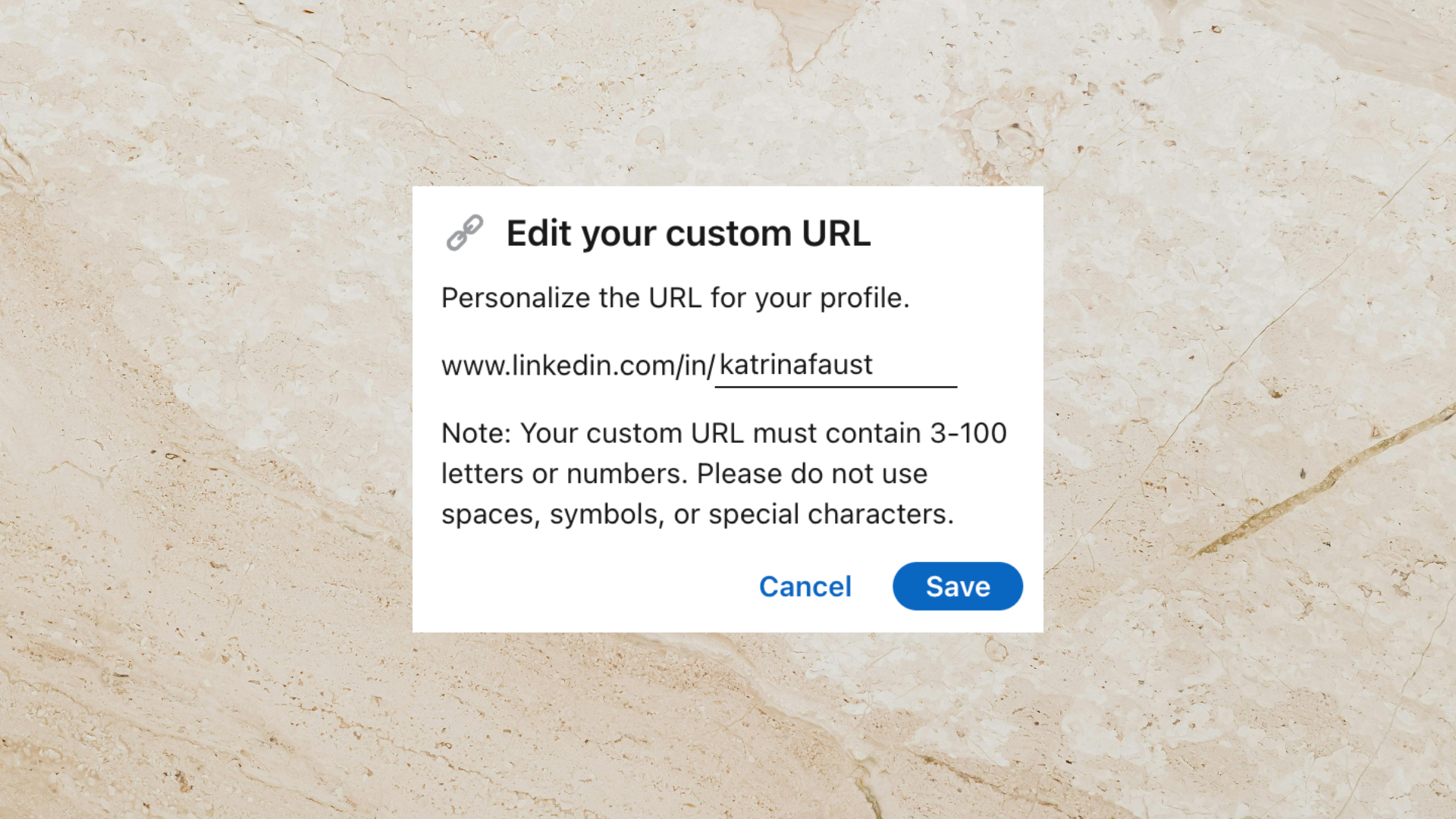
Default LinkedIn URLs look something like linkedin.com/in/john-smith-0a1b2c3d4e5f—long, messy, and impossible to remember. A customized LinkedIn URL like linkedin.com/in/john-smith-marketing looks professional and is easy to share verbally.
To create your custom URL on desktop, click the Me icon, then click View Profile. On your profile page, look at the right sidebar and click “Edit public profile & URL.” On the new page, find “Edit your custom URL” in the right sidebar and click the pencil icon next to your current URL.
A text box appears where you can type your desired URL. Use only letters, numbers, and hyphens—no spaces or special characters allowed. Length must be between 3 and 100 characters. Type something clean like firstname-lastname or firstname-lastname-city, then click Save.
The change takes effect immediately, though you may need to refresh your profile page. If your preferred URL is taken (common with popular names), try adding a middle initial, certification abbreviation like cpa, or city code like nyc.
Tips for Choosing a Professional Custom LinkedIn URL
Keep your personalized URL as close to your real name as possible for consistency across platforms. Avoid random numbers unless every variation of your name is genuinely unavailable.
If your name is common, add location (jane-smith-denver) or role (jane-smith-designer) to create a unique custom public profile URL. Match your LinkedIn URL with your email signature name and resume header to strengthen personal branding.
After creating your new URL, update your resume, personal website, digital portfolio, and business cards. Your old URL may redirect temporarily, but don’t rely on the previous URL working forever.
How to Use Your LinkedIn URL on Your Resume and Beyond
Knowing your LinkedIn profile short link is only valuable if you put it where people actually see it. The most important placement is your resume’s contact header, near your email and phone number.
Format it cleanly: LinkedIn: linkedin.com/in/yourname (drop the https:// for print materials to save space).
Additional places to add your URL:
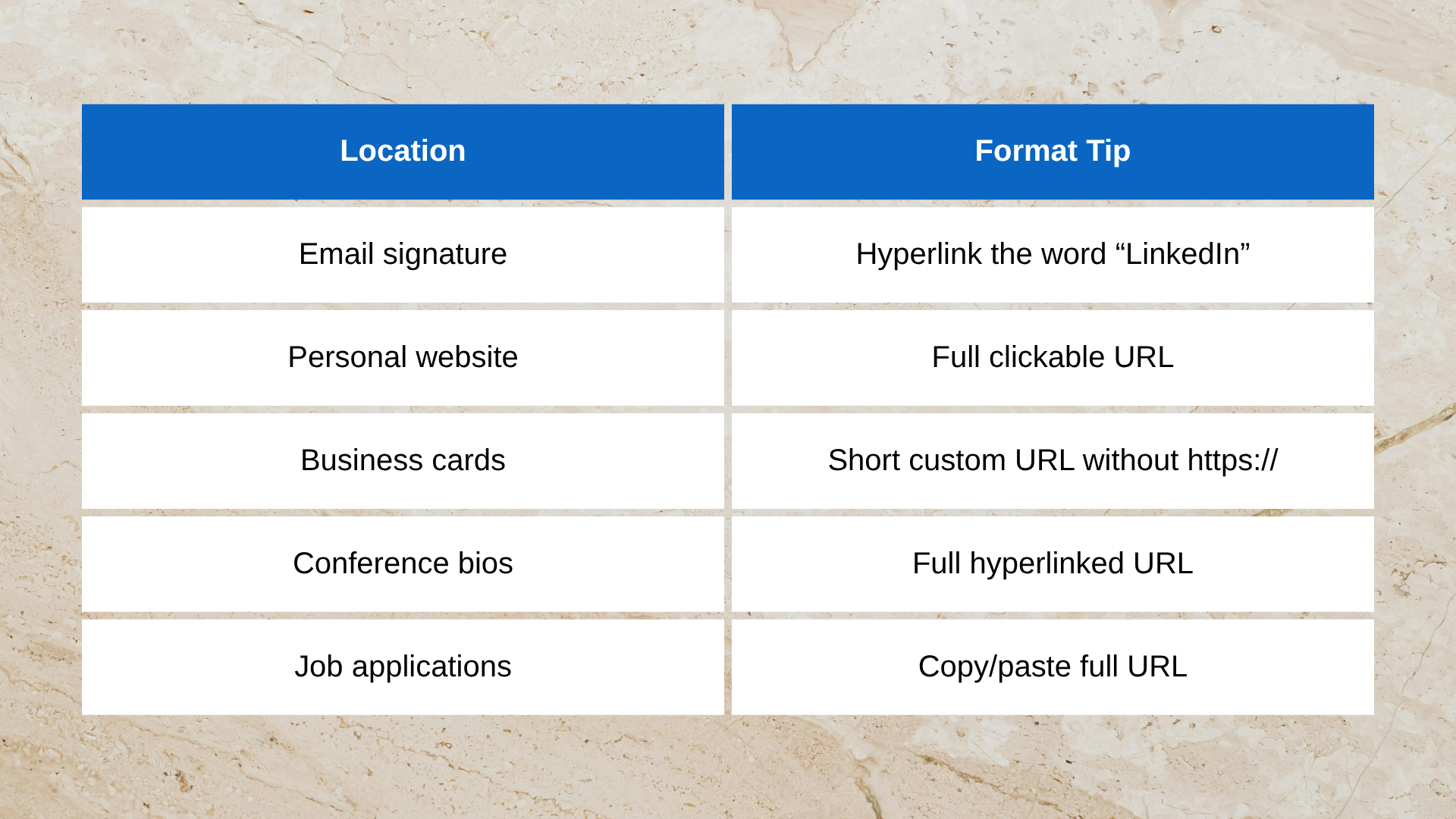
In digital documents like PDFs or Google Docs, hyperlink your URL so readers can click directly to your profile. For printed materials, a short, clean URL is easier for someone to type correctly. Consistent URL usage across platforms helps hiring managers confirm they’re viewing the same profile mentioned on your resume.
Optional: Finding and Using LinkedIn URLs for Others (Colleagues, Leads, or Prospects)
Sometimes you need someone else’s LinkedIn URL for networking, outreach campaigns, or recruiting purposes. The process is straightforward and doesn’t require any special tools.
Search the person’s name directly in LinkedIn’s search bar. Click their profile from the search results, then copy the URL from your browser’s address bar just as you would for your own profile. Depending on their public profile settings, you may see limited information if you’re not connected, but the URL structure remains copyable.
When multiple people share the same name, use Google with a query like “John Smith LinkedIn marketing director Chicago” to narrow results. Note that people aren’t notified when you copy their URL, though they may see a profile view notification depending on their settings.
For collecting multiple LinkedIn URLs at scale, specialized tools exist, but always respect LinkedIn’s terms of service and focus on ethical, consent-based professional outreach.
Next Steps: Make Your LinkedIn Work Harder for You
You now know how to find LinkedIn URL on both desktop and mobile, copy it accurately, and customize it for a professional appearance. Take five minutes today to update your resume, email signature, and key profiles with your clean, custom public profile URL.
Remember that your URL is just the door. Optimizing your headline, About section, and featured content makes that link worth clicking. A complete, polished profile turns profile views into opportunities.
Ready to take your LinkedIn presence to the next level? Schedule a free consultation with our team to review your profile and create a plan that attracts the right opportunities.