
How to Change Your Name on Facebook

Updating your name on Facebook is straightforward whether you’re refreshing a personal profile or rebranding a business page. Users can change their Facebook name once every 60 days, and the process works on both desktop and mobile devices. This guide covers current instructions for personal profiles and business pages as of 2026.
At Empowered Social Media, we emphasize the importance of maintaining accurate Facebook naming for trust and brand consistency with your audience nationwide. Whether you’re updating your personal account or managing a page for your business, getting your name right matters.
Facebook name rules and 60‑day limit
Facebook enforces a real-name policy for personal profiles, requiring users to display authentic first and last names that match official identification documents. For business pages, your page name must accurately reflect your real business branding and public records.
Here are the core rules to keep in mind:
Personal
No symbols, numbers, excessive punctuation, or unusual capitalization. No repeating characters or titles.
Business
Must match actual business name. No misleading terms like “Facebook” or “Meta.”
Once you change your name, you generally cannot edit it again for 60 days on both personal profiles and pages. This restriction helps maintain platform integrity and prevents abuse.
Major name changes may trigger a verification process. Facebook might request a driver’s license, passport, birth certificate, or other government-issued photo ID. This typically resolves within 24-48 hours when you submit high-quality, current documents. Using a nickname like “Abby” for “Abigail” is acceptable, but impersonation or misleading names can lead to rejection or account restrictions.
How to change your name on Facebook (Personal Page on desktop)
Follow these steps to update your personal profile name from a computer browser at facebook.com.
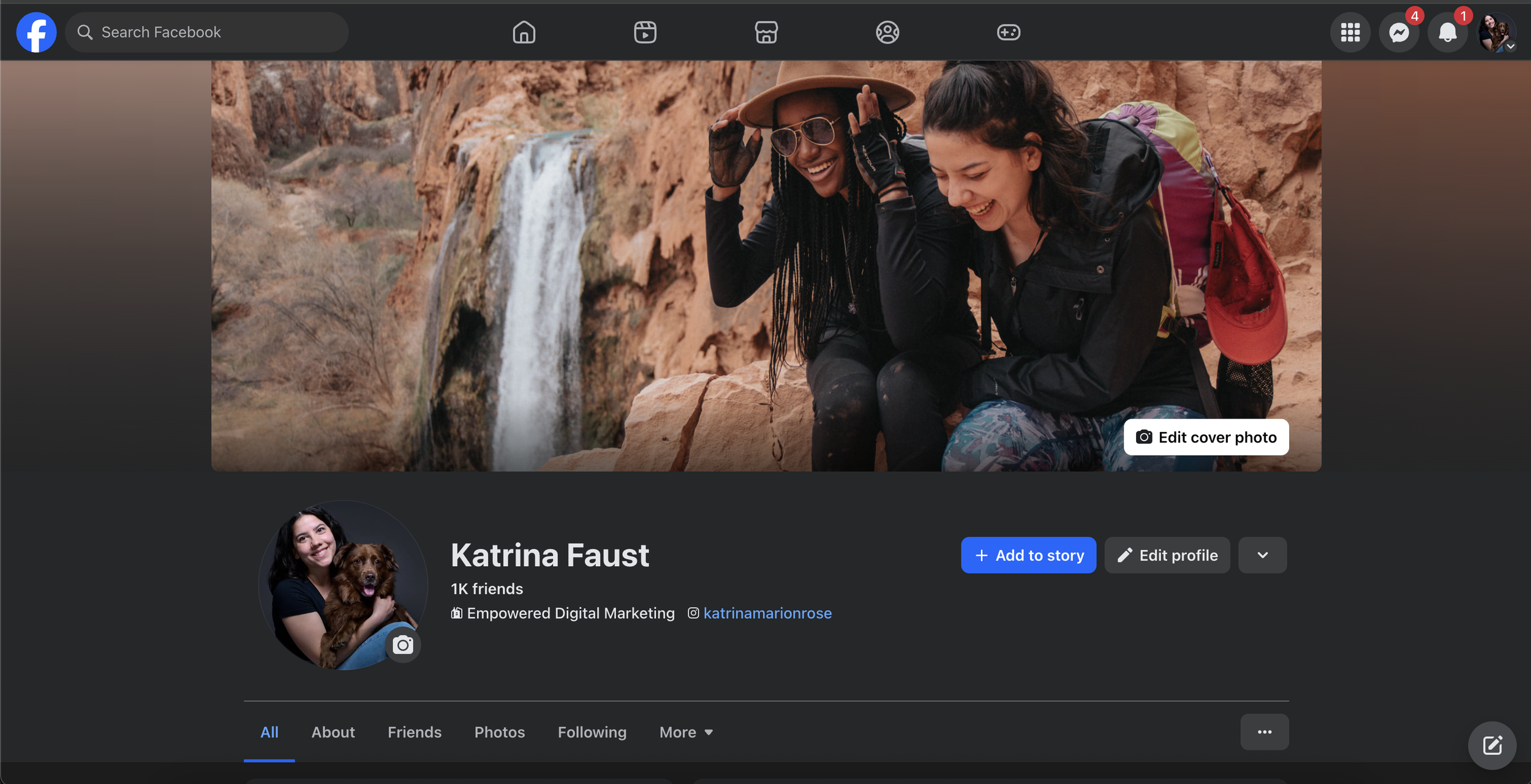
1) Log into your Facebook account
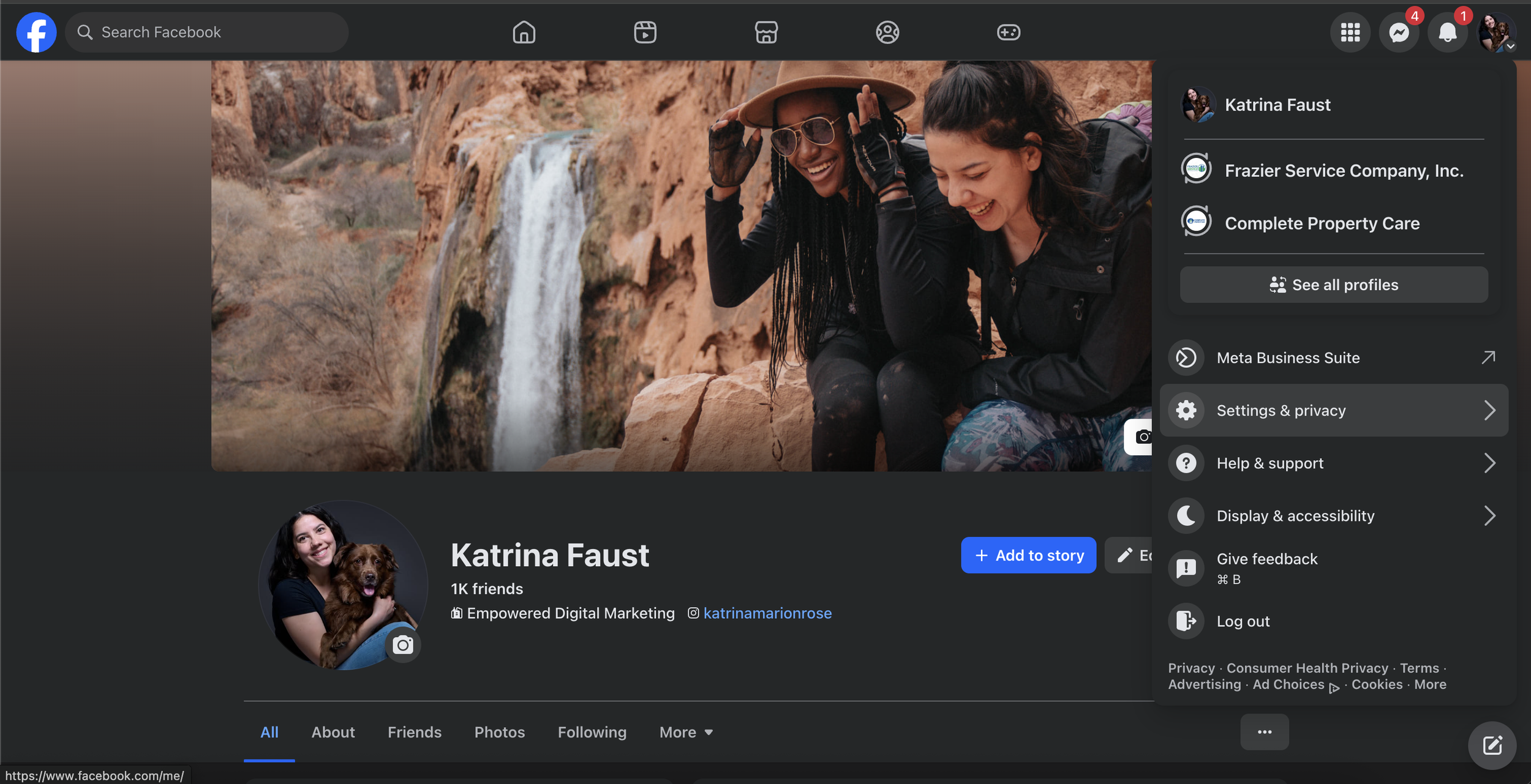
2) Click your profile picture or the down-arrow in the top right corner
3) Select “Settings & privacy” from the dropdown menu
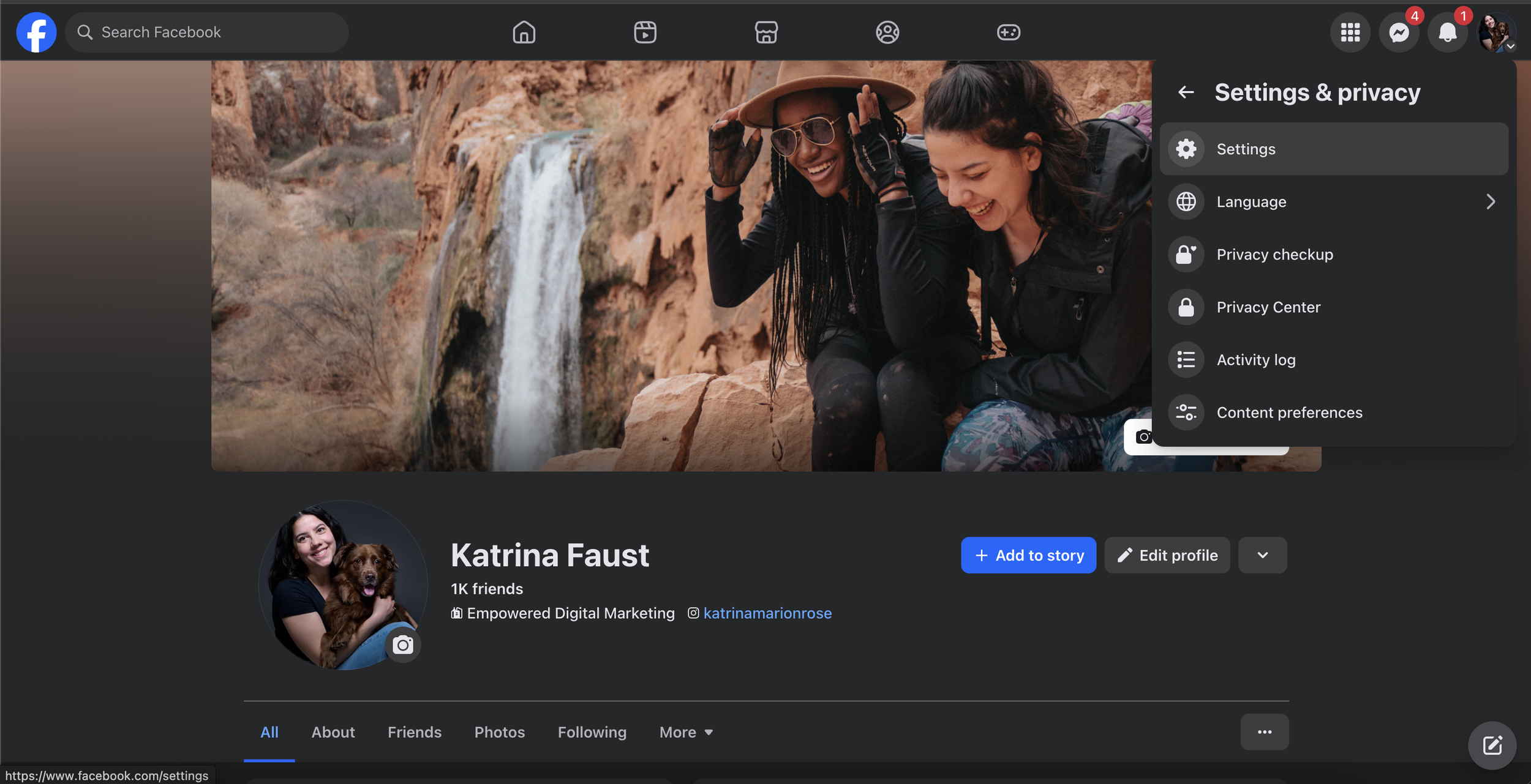
4) Click settings to open your account preferences
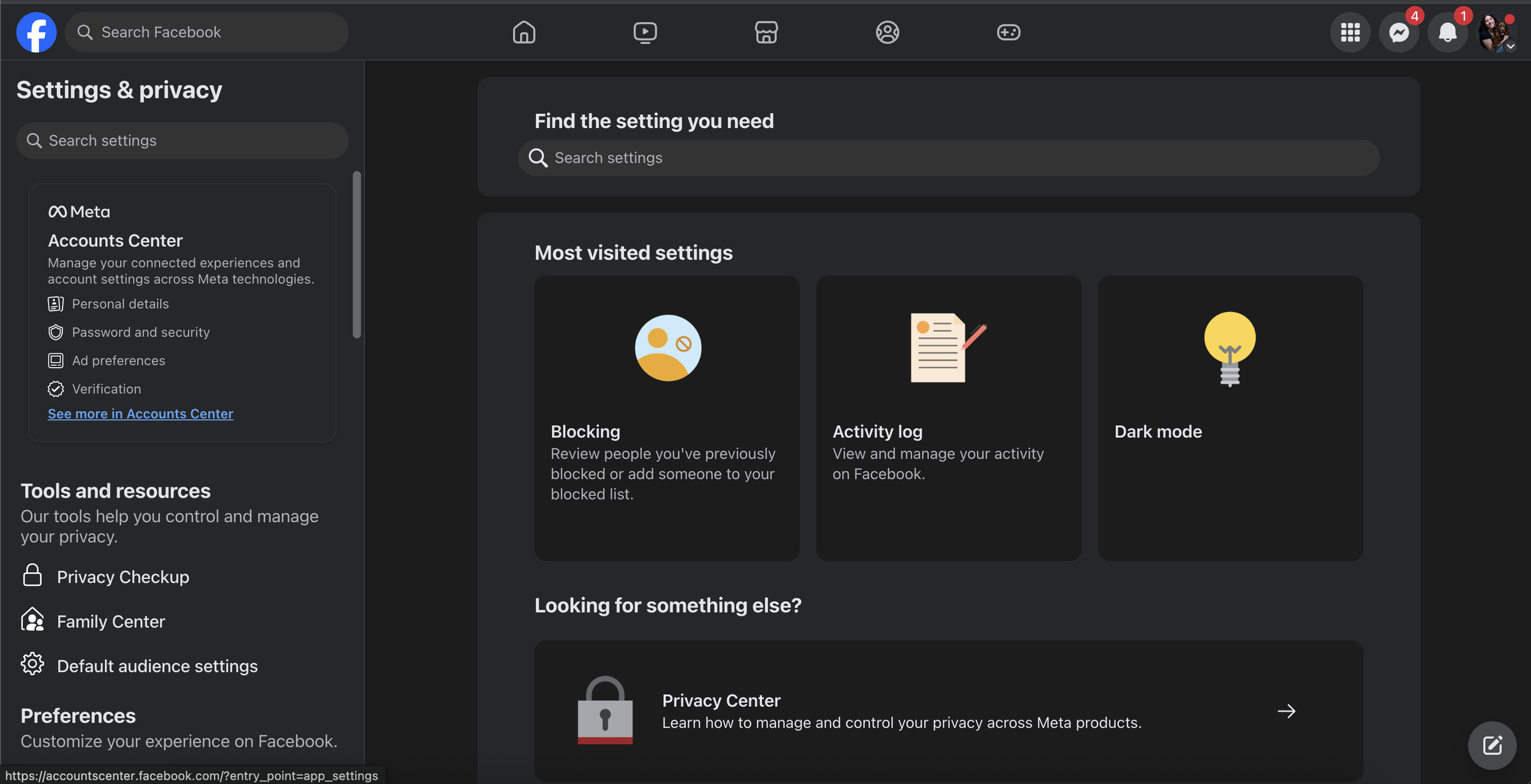
5) Look for “See more in Accounts Center” in the left menu and click it
6) Select “Profiles” and choose your Facebook profile (you may see linked Instagram accounts here too)
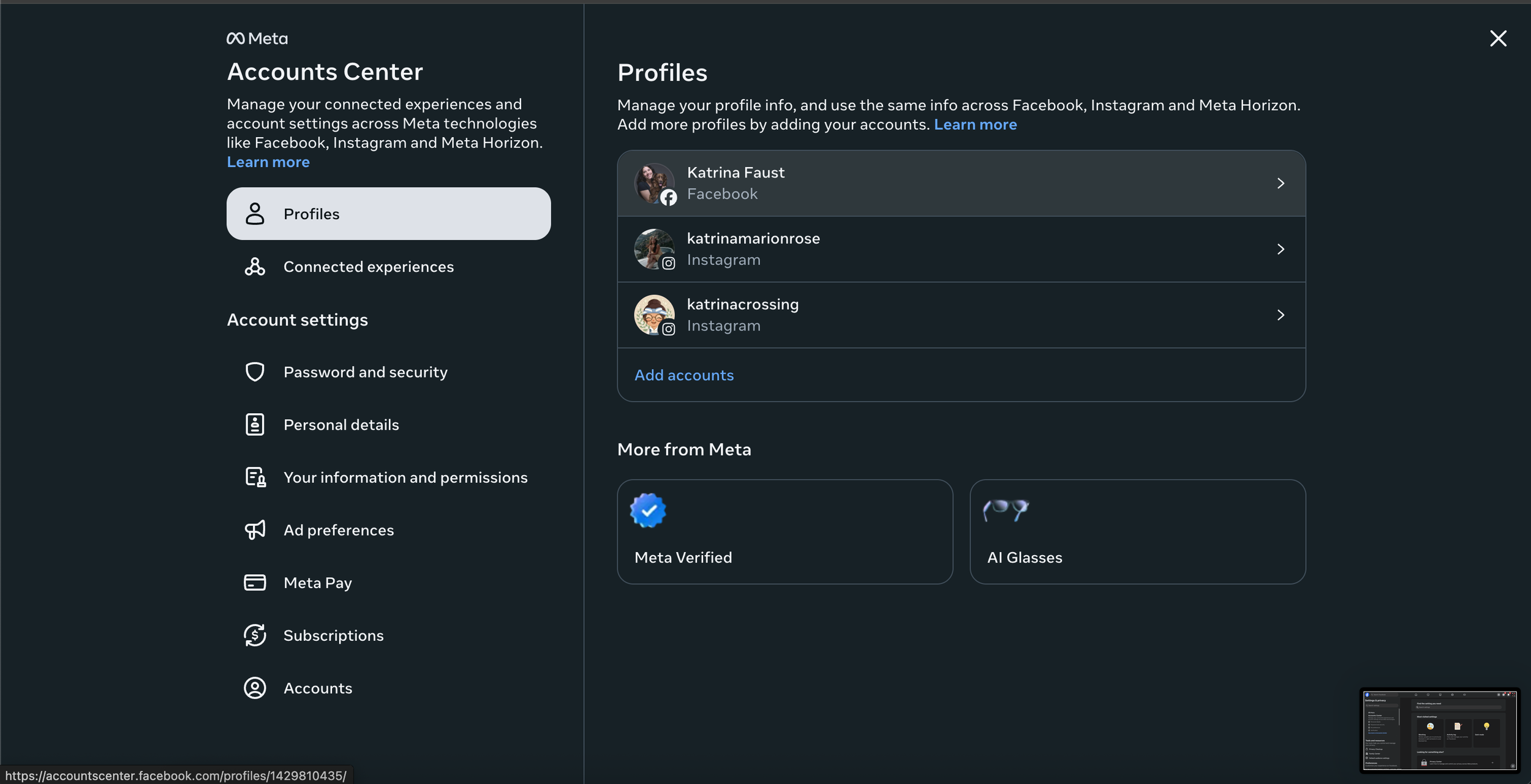
7) Click name to open the name editor
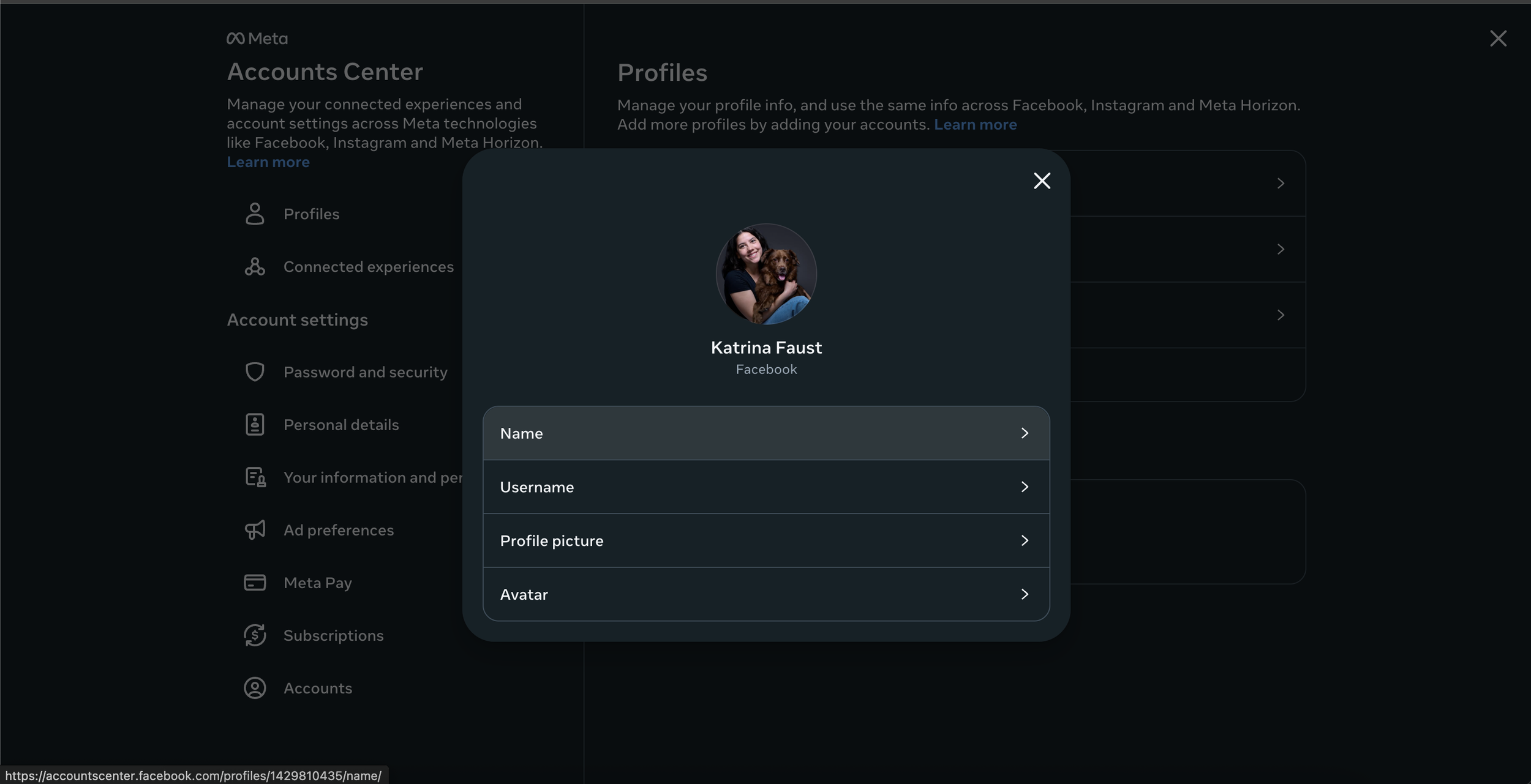
8) Enter your first, middle (optional), and last name exactly as you want them to appear
9) Review the preview carefully—check for any punctuation errors or spacing issues
10) Click review change and confirm the final format if Facebook offers display variations
11) Enter your password to save the changes
Your new name may take a few minutes to appear across desktop, mobile, and Messenger. The 60-day timer starts immediately after saving, so double-check your details before confirming.
How to change your name on Facebook (Personal Page on mobile)
The Facebook app works similarly on both iOS and Android devices. Here’s how to access the name settings on your phone.
Accessing the menu:
On iPhone or iPad: Tap the three horizontal lines at the bottom right
On Android: Tap the menu icon at the top right of your screen
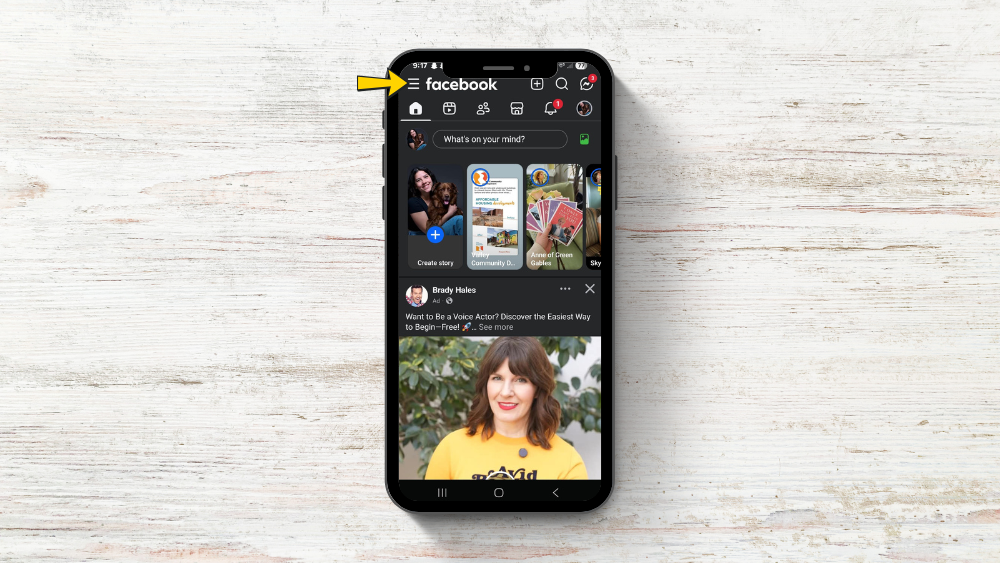
1) Tap “Settings & privacy” from the menu
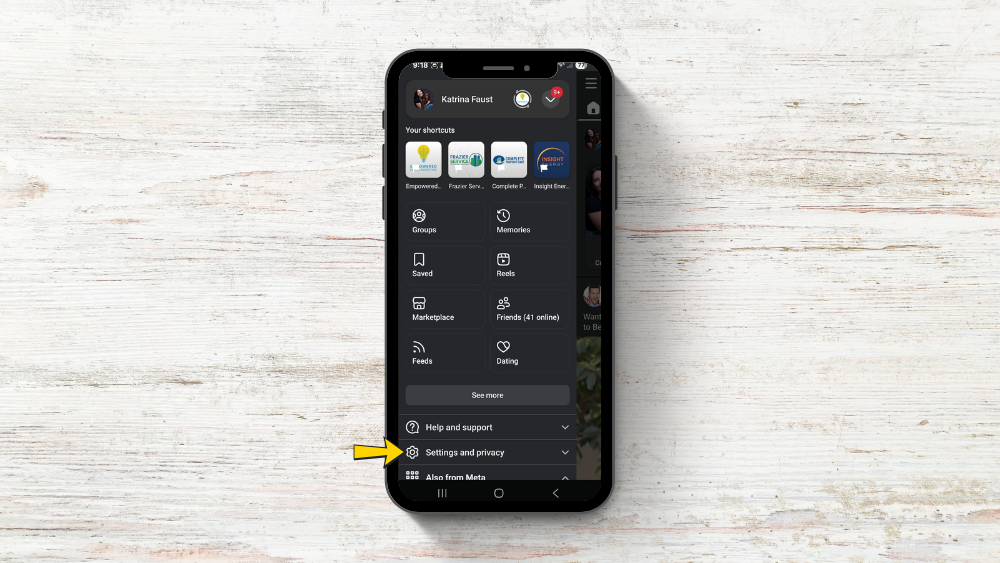
2) Tap “Settings”
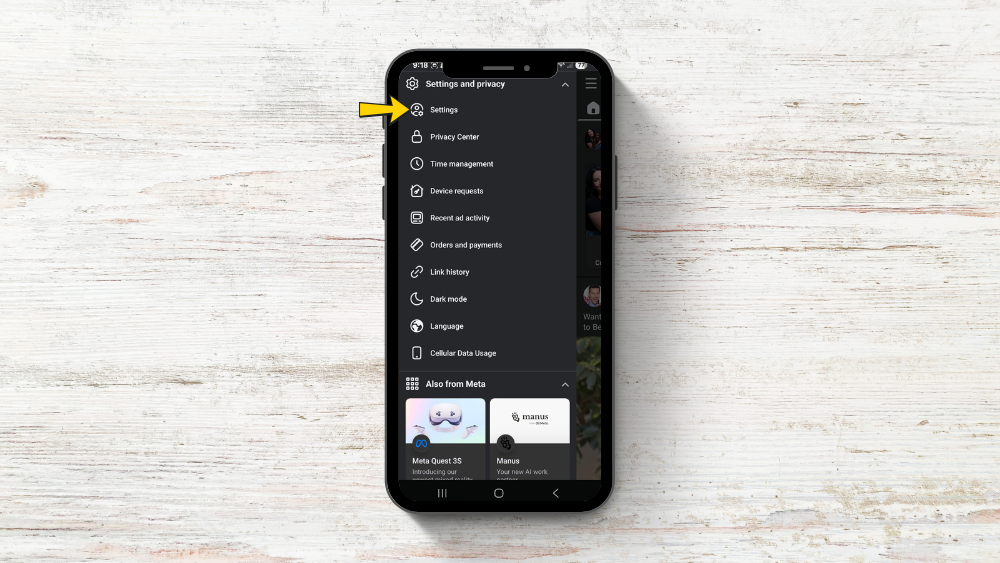
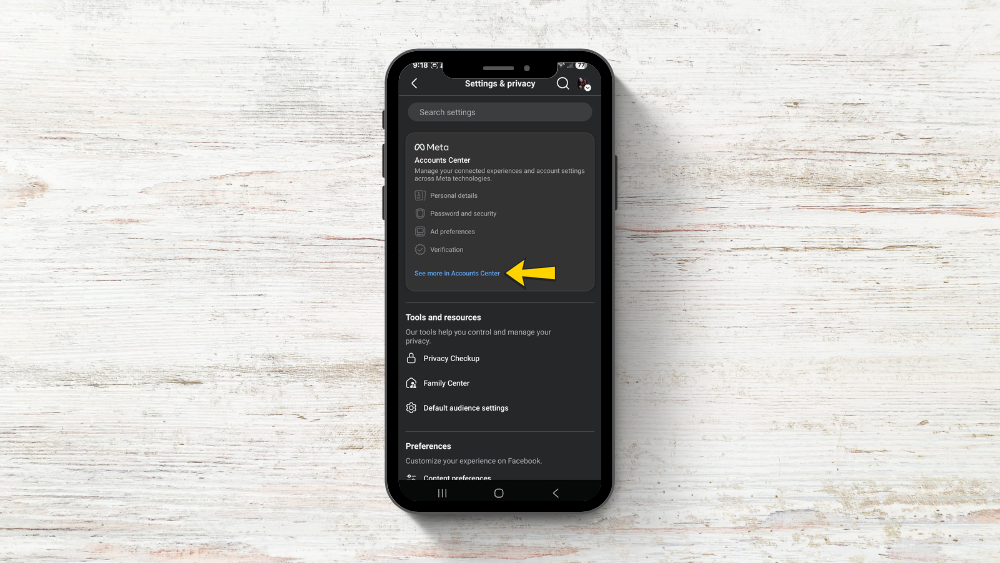
3) Open the “Accounts Center”
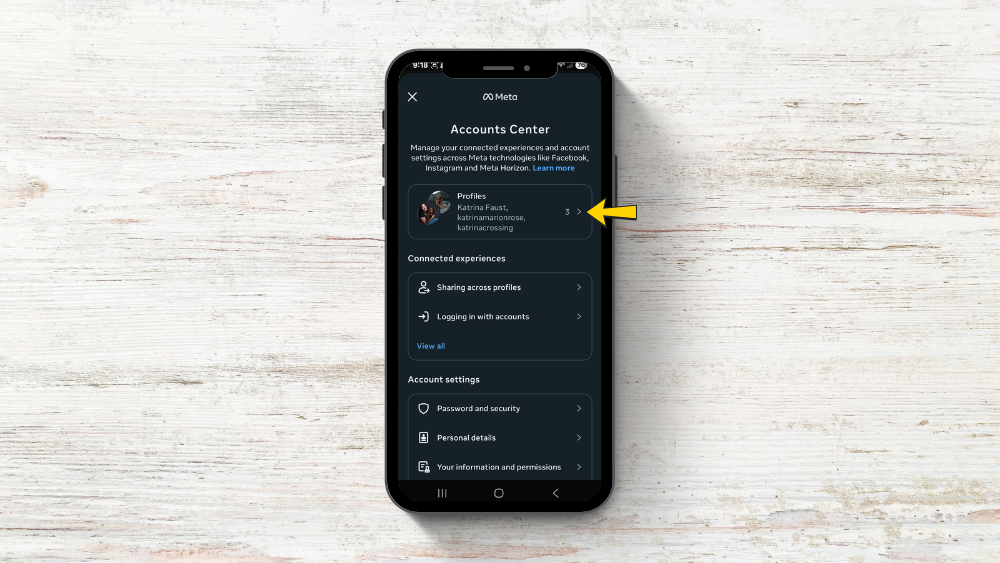
4) Tap “Profiles” and select your Facebook profile
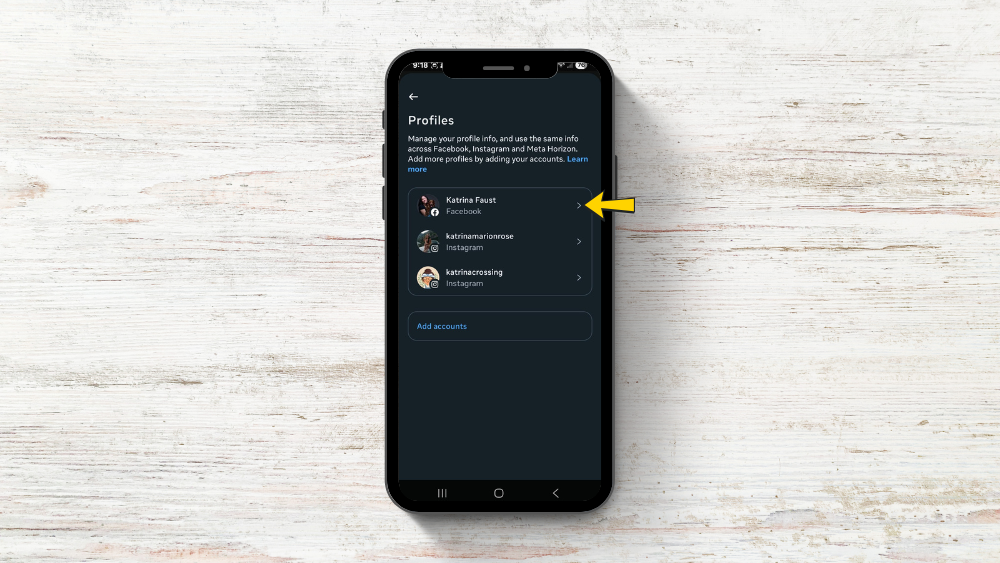
5) Tap “Name” to edit your details
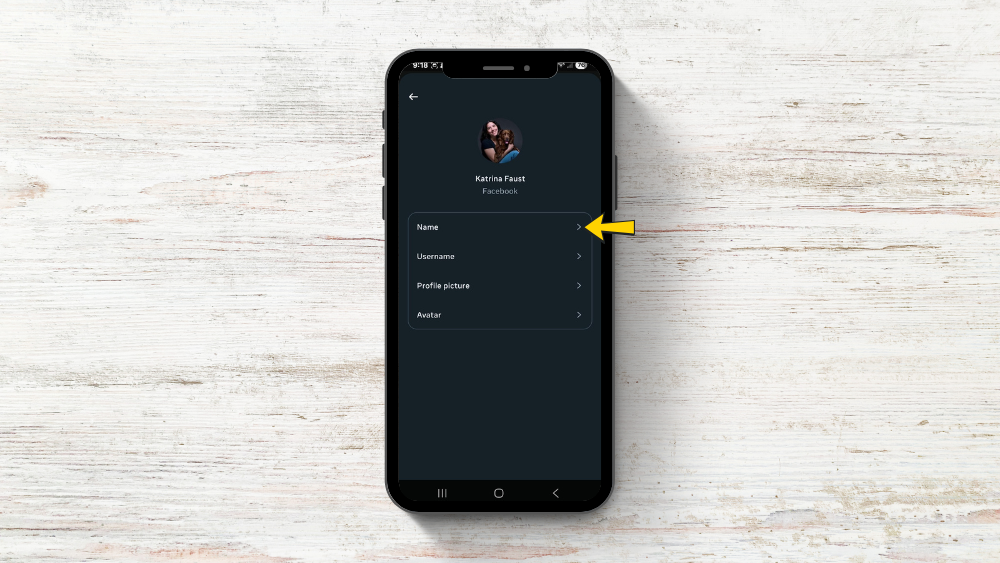
6) Type your new first, middle (if desired), and last name
7) Check spelling and capitalization carefully
8) Tap “Review change” or the current button label
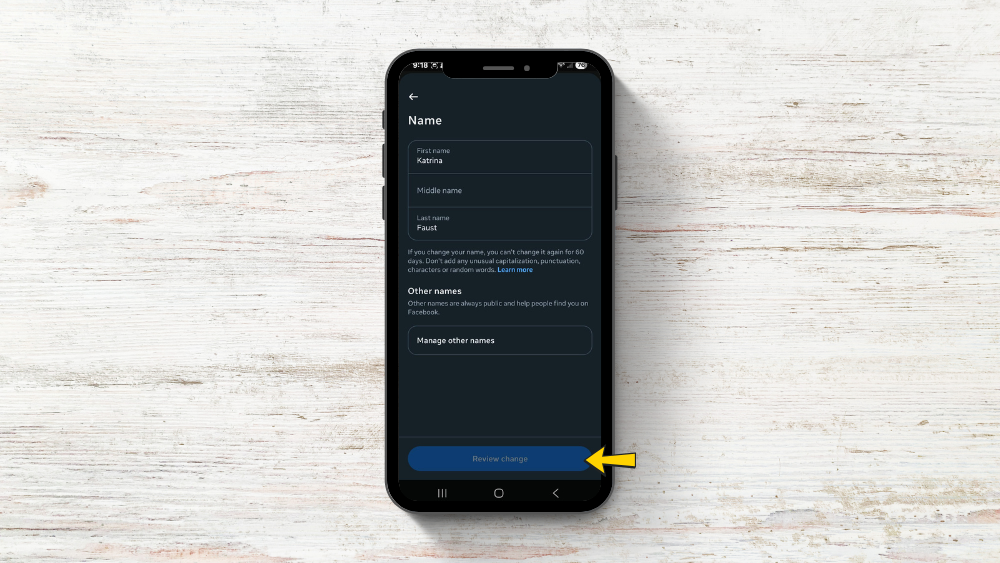
9) Confirm with your Facebook password
You won’t be able to switch your name again for 60 days after this change takes effect. Make sure the name matches any ID you might need later for account recovery or verification—this saves trouble down the road.
How to change your name Facebook (Business Page on desktop)
This section focuses on Facebook Pages for brands, local businesses, and organizations. Maintaining your business page with accurate naming helps customers nationwide find and trust your brand.
You must be an admin of the Page to request a name change, and significant changes may require manual review by Meta.
1) Go to your Page from facebook.com
2) Click “Settings” in the left sidebar
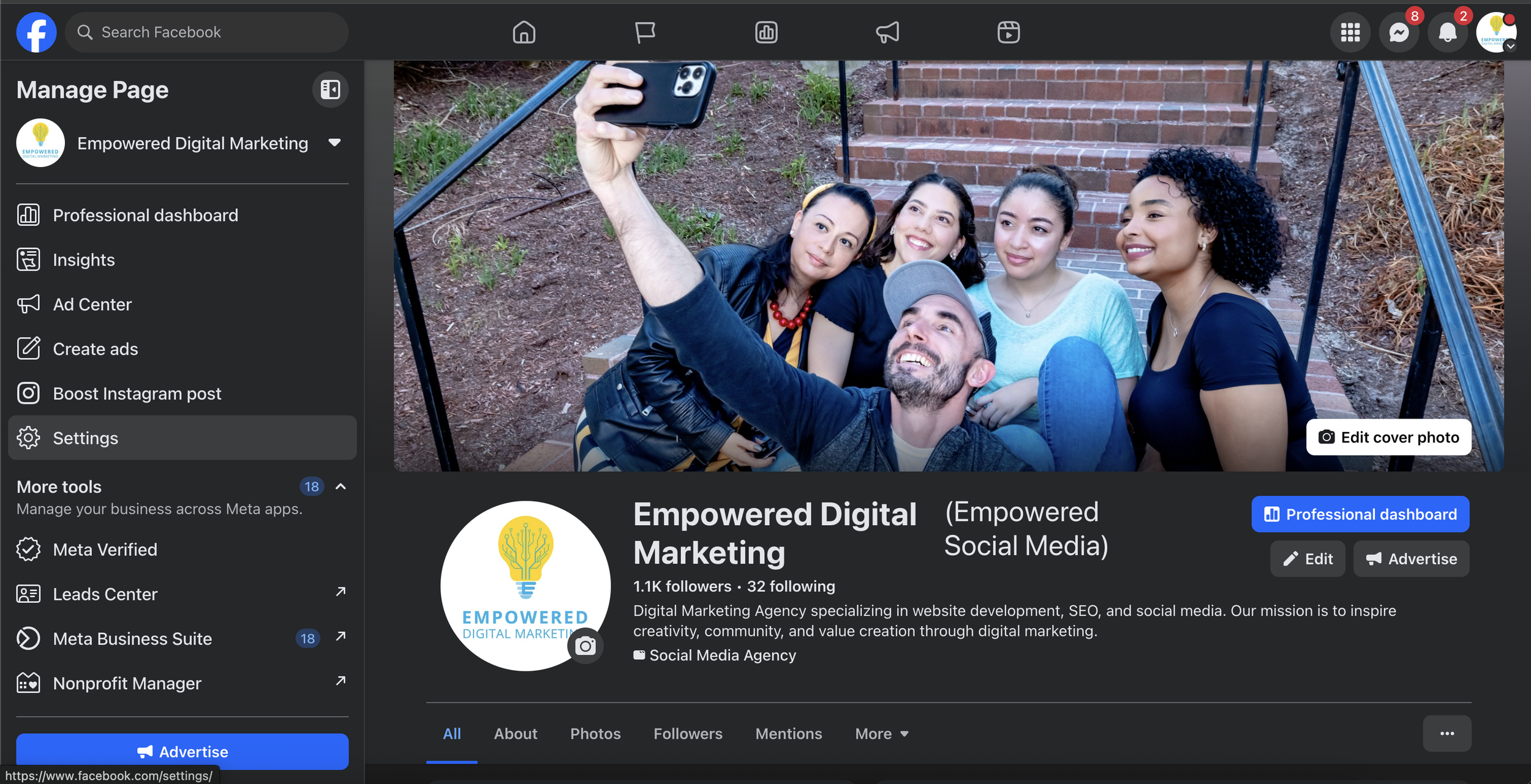
3) Choose “Page info” or “Page settings” or "Page setup" depending on your interface
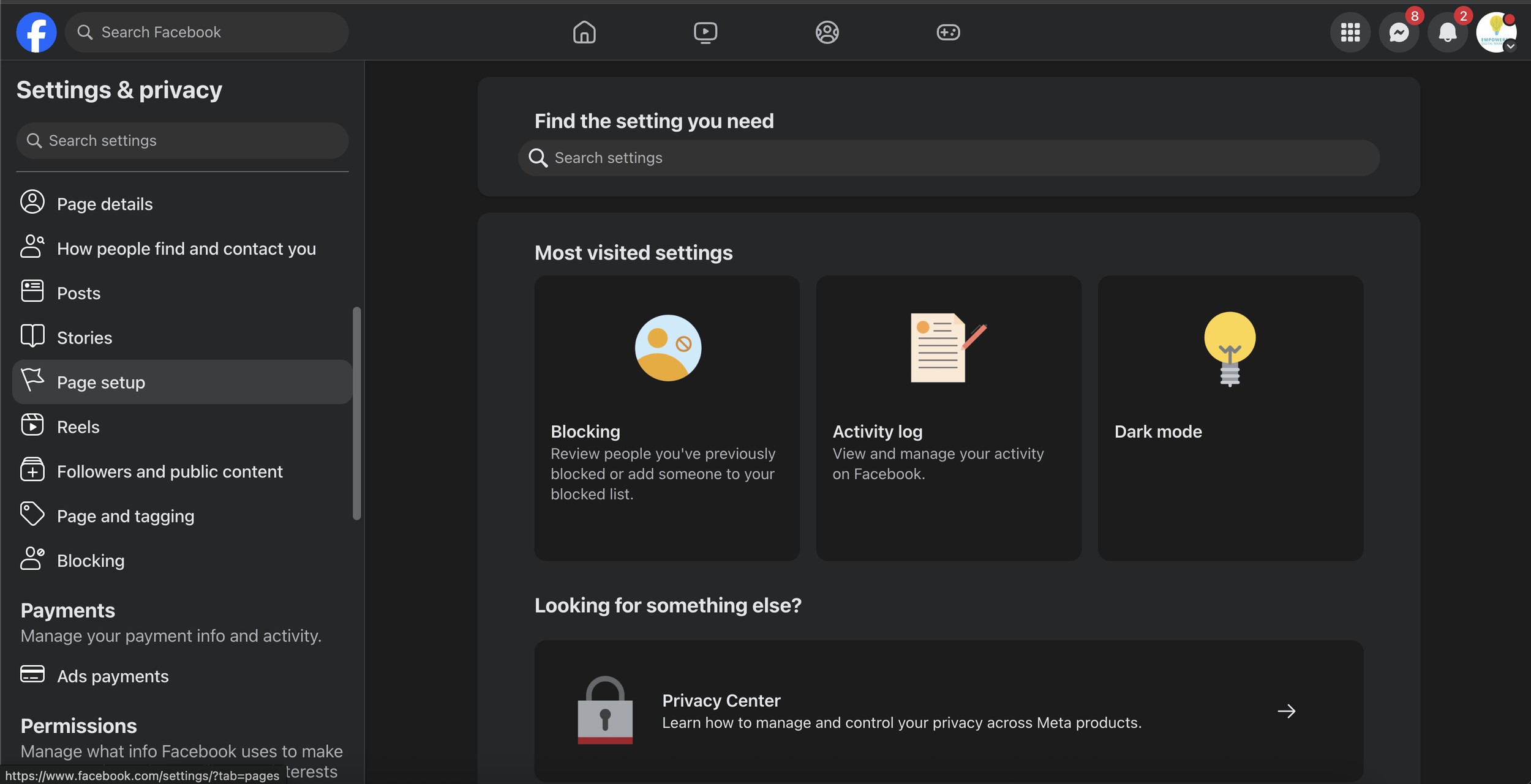
4) Locate the “Name” or “Page name” field
5) Click the edit icon next to your current name
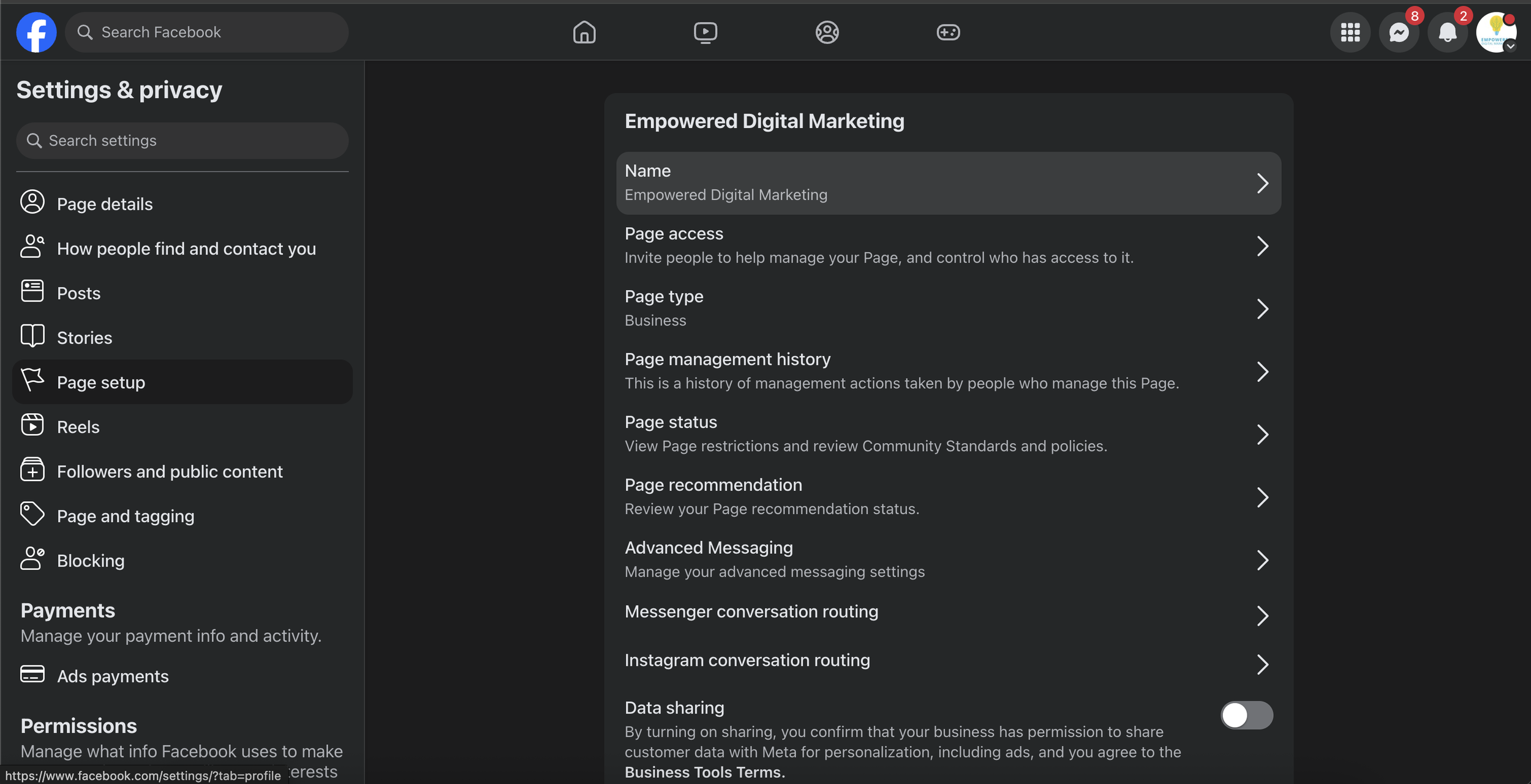
6) Enter your new Page name—it should match your business branding and legal documents
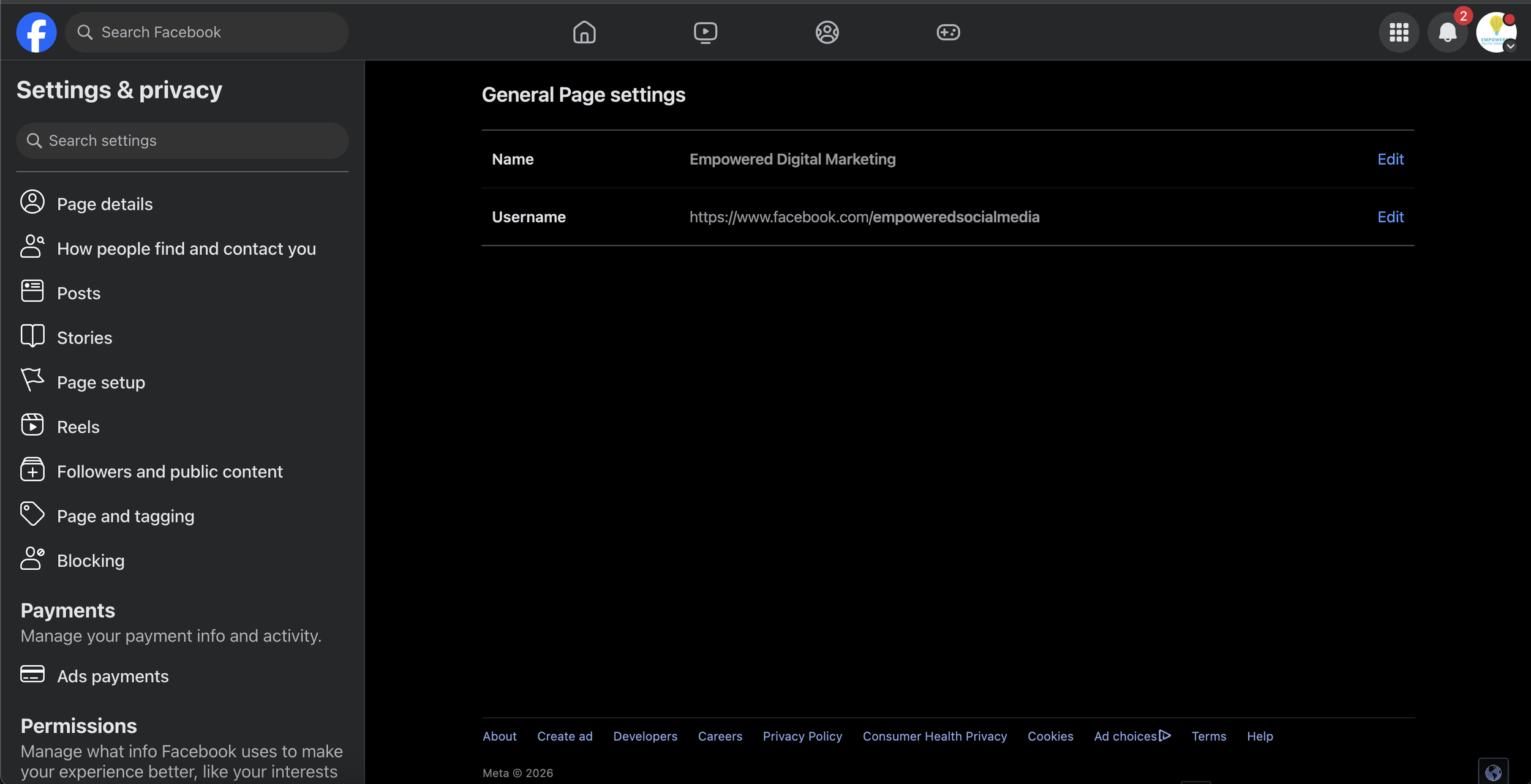
7) If the change is significant (such as a complete rebrand), Facebook may show a preview and ask for a reason
8) Submit the request
After submitting, the name change may require approval. Processing can take anywhere from a few minutes up to 3-7 business days. During this review period, your old name may still display to visitors.
Frequent or misleading Page name changes—like switching to a completely different company or topic—are often rejected. This can also reduce trust with your followers and affect your page’s standing.
How to change your name on Facebook (Business Page on mobile)
These steps work in the main Facebook app on both iOS and Android for Page admins.
1) Open the menu (three lines) in your Facebook app
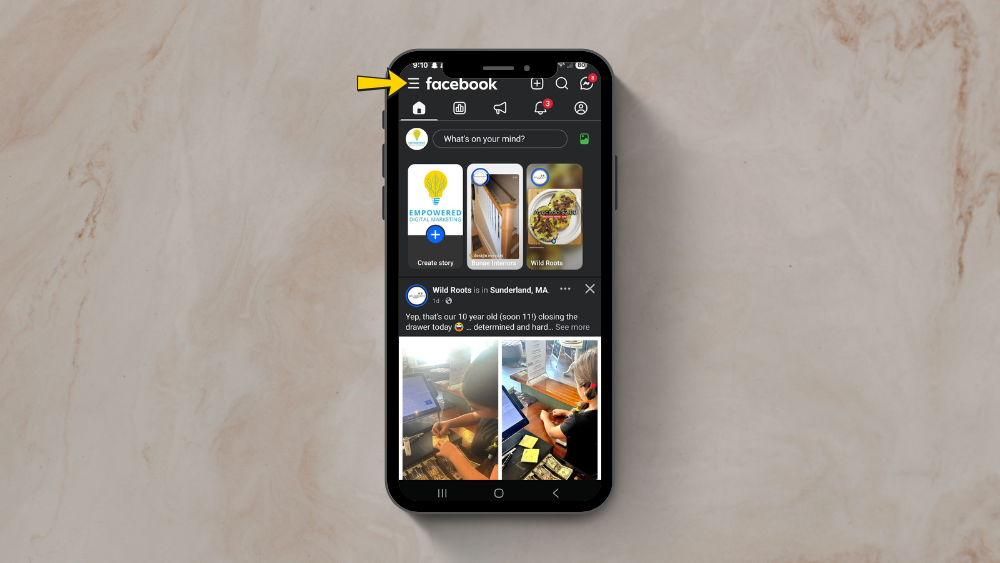
2) Tap “Pages” and select the specific Page you manage
3) Tap the “Settings” or gear icon on your Page
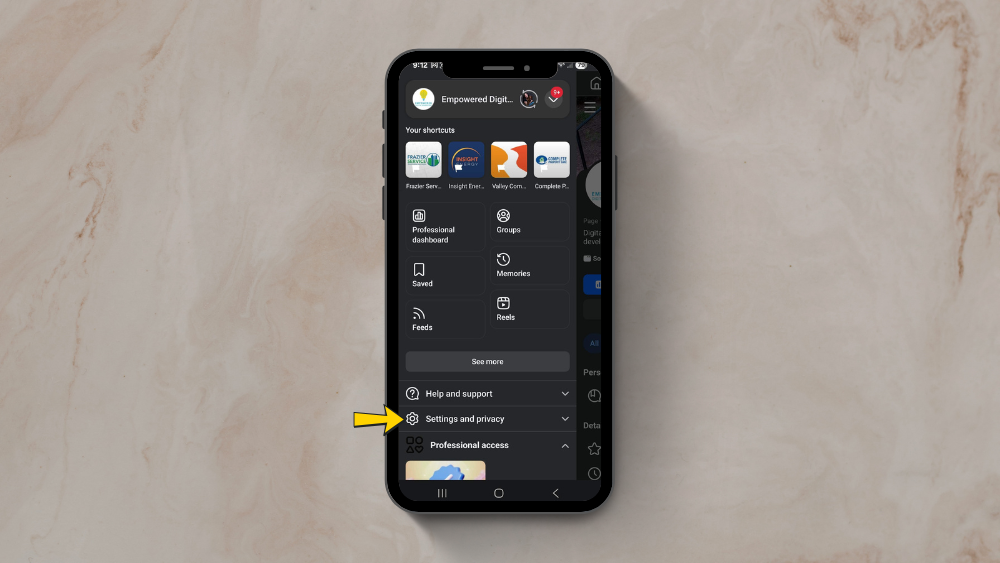
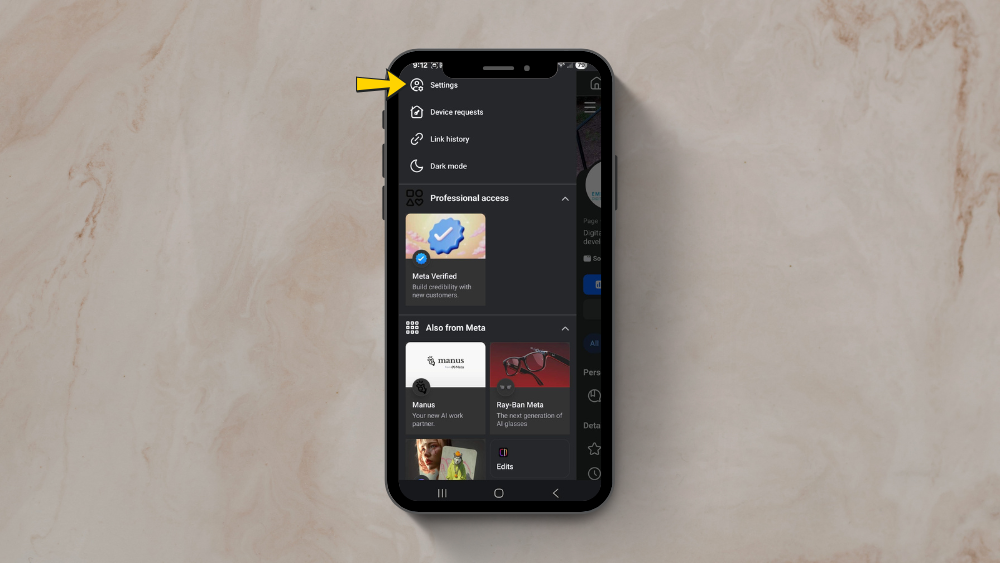
4) Choose “Page settings” or “Page info” or "Page setup" (the label varies by interface version)
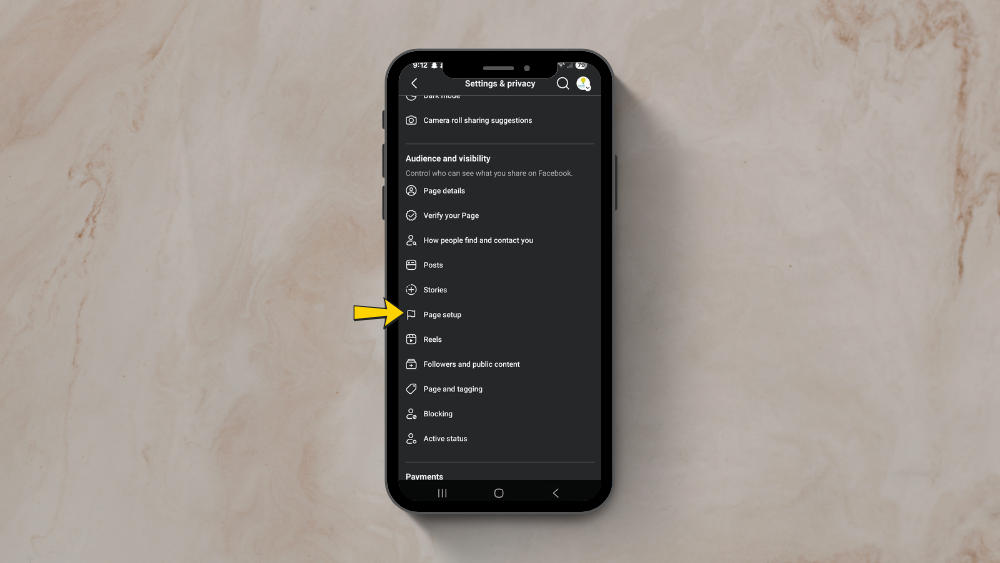
5) Tap the “Name” or “Page name” field
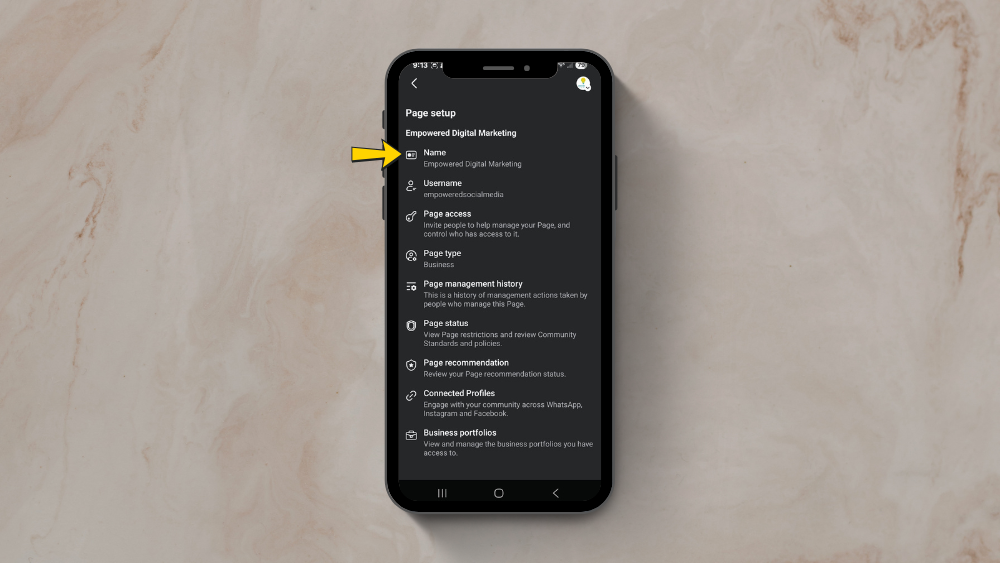
6) Type your new business name, ensuring it matches your website, invoices, and other public listings
7) Review spelling and capitalization before tapping “Continue” or “Request change”
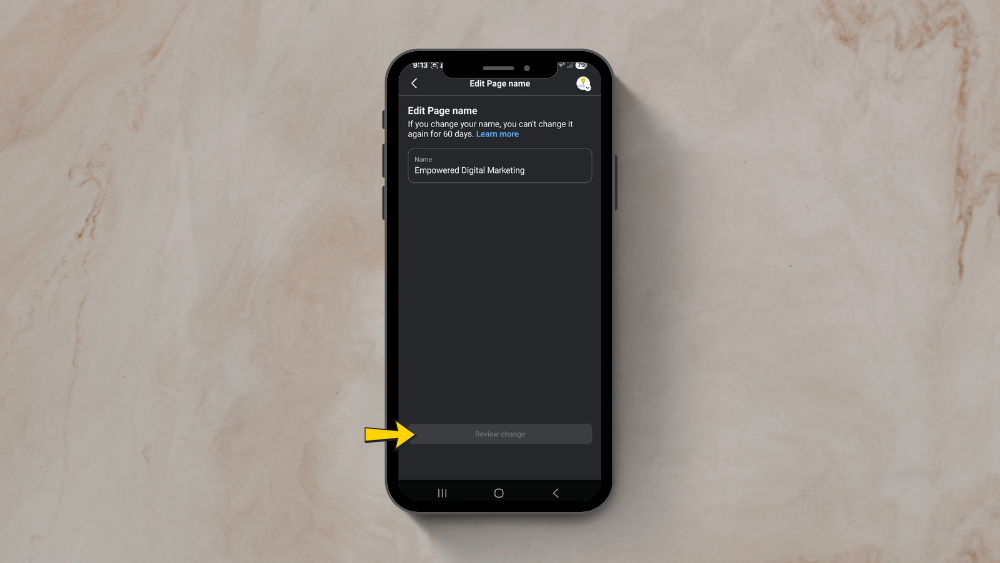
As on desktop, Facebook may review your request. The outcome could be approval, denial, or a request for additional documentation to confirm your business legitimacy.
Tips for choosing your name on Facebook (personal and business)
Selecting the right name now prevents headaches later. Here are practical tips for both individuals and brands.
For personal profiles:
Use your real name or a widely recognized professional name
Choose something friends, colleagues, and clients will easily recognize
Avoid creative spellings that might cause an error during verification
For business pages:
Use the exact business name registered with your state or country
Match your website, invoices, and local listings for consistency
Stay consistent across platforms
Brand consistency matters:
Match your Facebook Page name with your Instagram, LinkedIn, and website branding whenever possible. This helps customers find you across the world of social media and builds recognition.
What to avoid:
Keyword stuffing (e.g., “Best Solar Panels Company Massachusetts Connecticut”) which looks spammy and may violate guidelines
Frequent name changes that confuse followers
Names that include symbols or characters that don’t belong
For major rebrands or mergers, plan your name changes ahead of time. Update your profile picture, cover image, and About section together to present a cohesive brand refresh.
Troubleshooting common Facebook name change issues
Here’s quick help for common problems when updating your name on Facebook.
“You can’t change your name right now” message: This usually appears due to the 60-day rule or too many recent changes. If an error occurred while retrieving your settings, try again later or clear your browser cache.
Rejections due to policy: Names with symbols, random capitalization, or misleading business names may be declined automatically. Review your entry for any punctuation issues or blocked terms.
ID or document requests: Facebook may request verification if your new name doesn’t appear genuine or resembles a trademarked brand. Have high-quality scans of your ID ready. If videos you watch or your watch history and influence on the platform seem unrelated, note that these don’t affect name changes.
Access issues: Double-check that you’re logged into the correct account or Page. For business pages, confirm you have admin privileges. If you need to switch accounts, log out and sign in to the correct profile.
Appeals process: If you believe a name change was wrongly rejected, use the Facebook Help Center or in-app support to appeal. Include clear proof of identity or business registration. Please try again later if the system is temporarily unavailable—sometimes you just need patience.
If playback doesn’t begin shortly when watching help videos, try restarting your device or checking your connection. For issues where an error occurred, the Facebook support team can provide additional guidance.
Why accurate naming matters for your brand and customers
A clear, accurate Page name helps customers find the right business, reduces confusion, and supports local and national searchability when combined with consistent contact details.
Using your full, correct company name ensures your audience knows they’ve reached the genuine provider—not an impersonator or outdated listing. This builds the trust that’s essential when customers make decisions about your products or services.
Take a few minutes to review your current profile and Page names, logos, and About sections. Ensure consistency across all channels, from Facebook to Instagram to your website. This small effort pays dividends in professional credibility and customer confidence.
If you want to improve your social media presence and ensure your Facebook name reflects your true identity or brand, Empowered Social Media is here to help with expert guidance and support.
Learn more about our social media services here or download one of our free guides to up your social media game below.